
Summary
Roostwood generates a Ruby code snippet that reproduces the whole closet inside SketchUp: sections, materials, drawer stacks, doors and positions. It is the fastest path if you need to polish the model by hand or present photorealistic renders to the client.
Steps
-
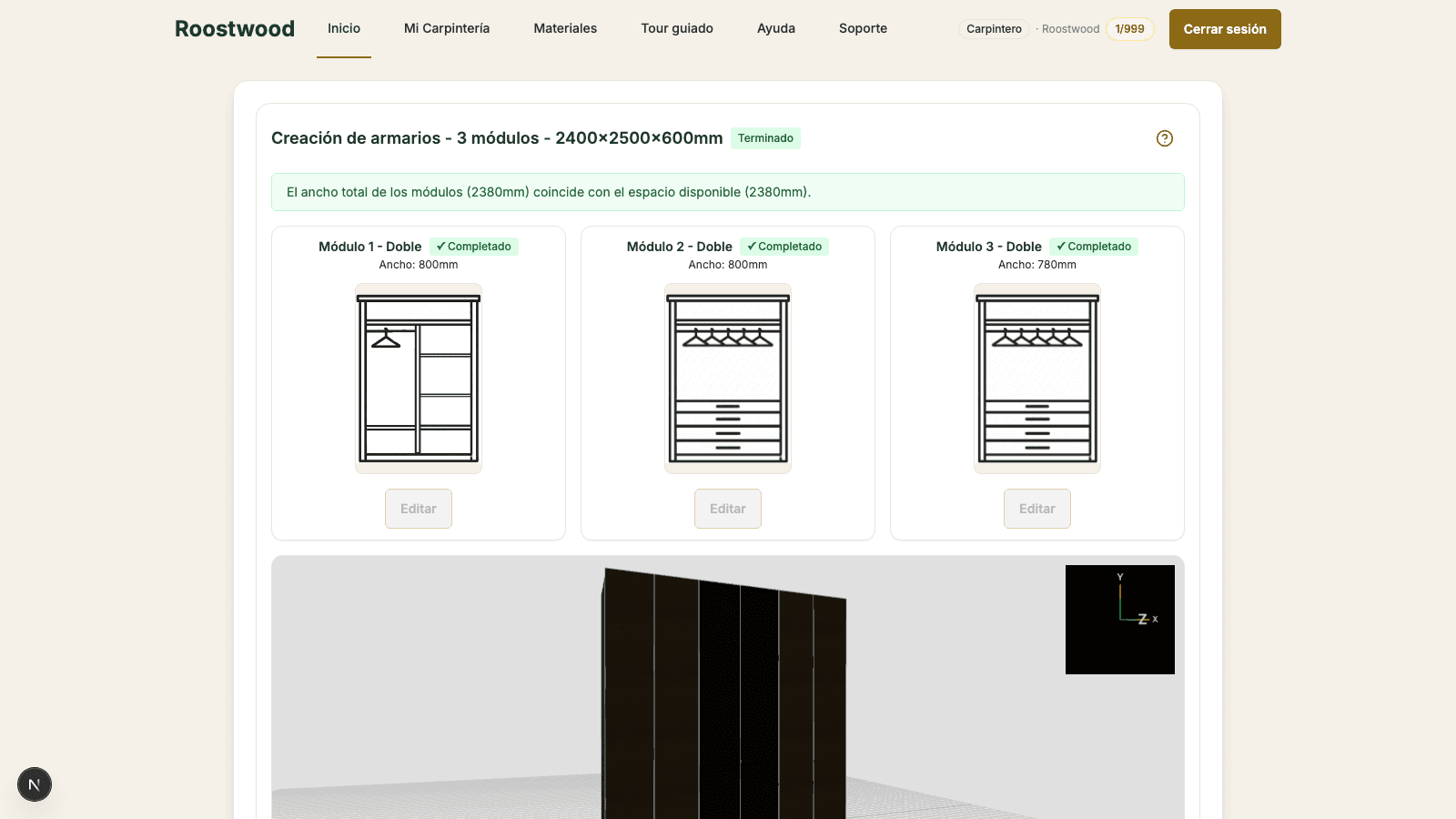
Open the finished project from the Projects modal → View project. You enter the designer in read-only mode with the export button bar.
-
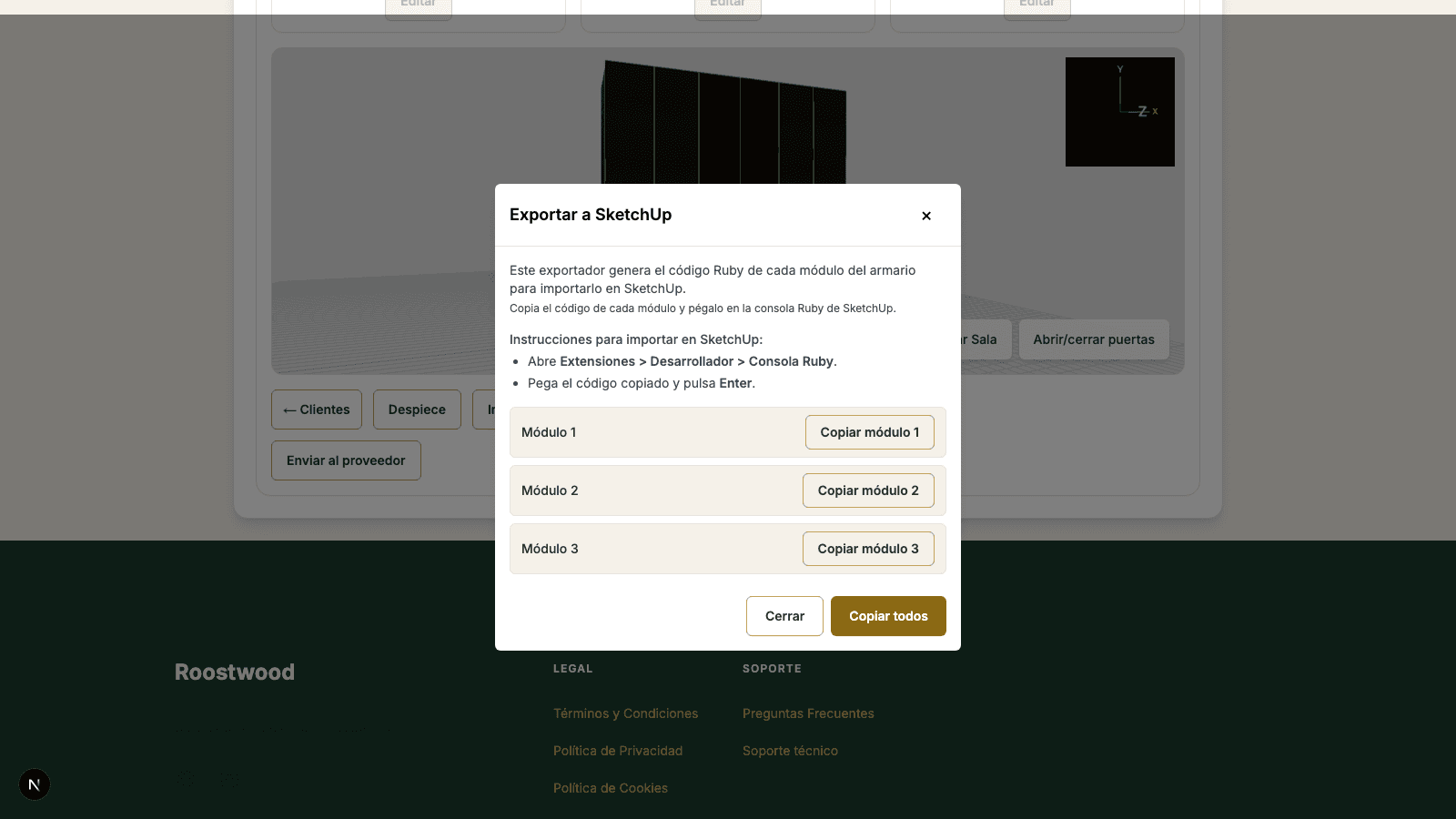
Press "SketchUp". A modal opens with the generated Ruby code per section, ready to copy to the clipboard.
-
Load the code in SketchUp. Open Extensions > Developer > Ruby Console, paste the copied code and press Enter to run it. With several sections, copy each section's code (or use Copy all).
Tips
- The Ruby code targets SketchUp Pro. The free web versions do not allow running arbitrary code.
- If you change the closet's dimensions in Roostwood after exporting, regenerate the Ruby before presenting to the client — it does not sync on its own.
- Textures are applied as SketchUp materials named after the original material. If you want to replace them with your Pro catalog's, just drag the new texture onto any face and SketchUp propagates it to the rest.