
Summary
Sometimes you don't want doors: an open walk-in closet, a built-in under a staircase, visible shelving. Roostwood lets you generate any existing layout without door panels: the closet stays open, with no handles, and the cut list does not include the fronts.
Steps
-
Reach the section's "Extra Options" step. After defining the layout, material and section width, the wizard takes you to the Extra Options step, home to LED support, the closet rod type, the door and additional configuration (Hardware / Offcuts / Miters). In the door row you will see the door-side buttons and No doors.
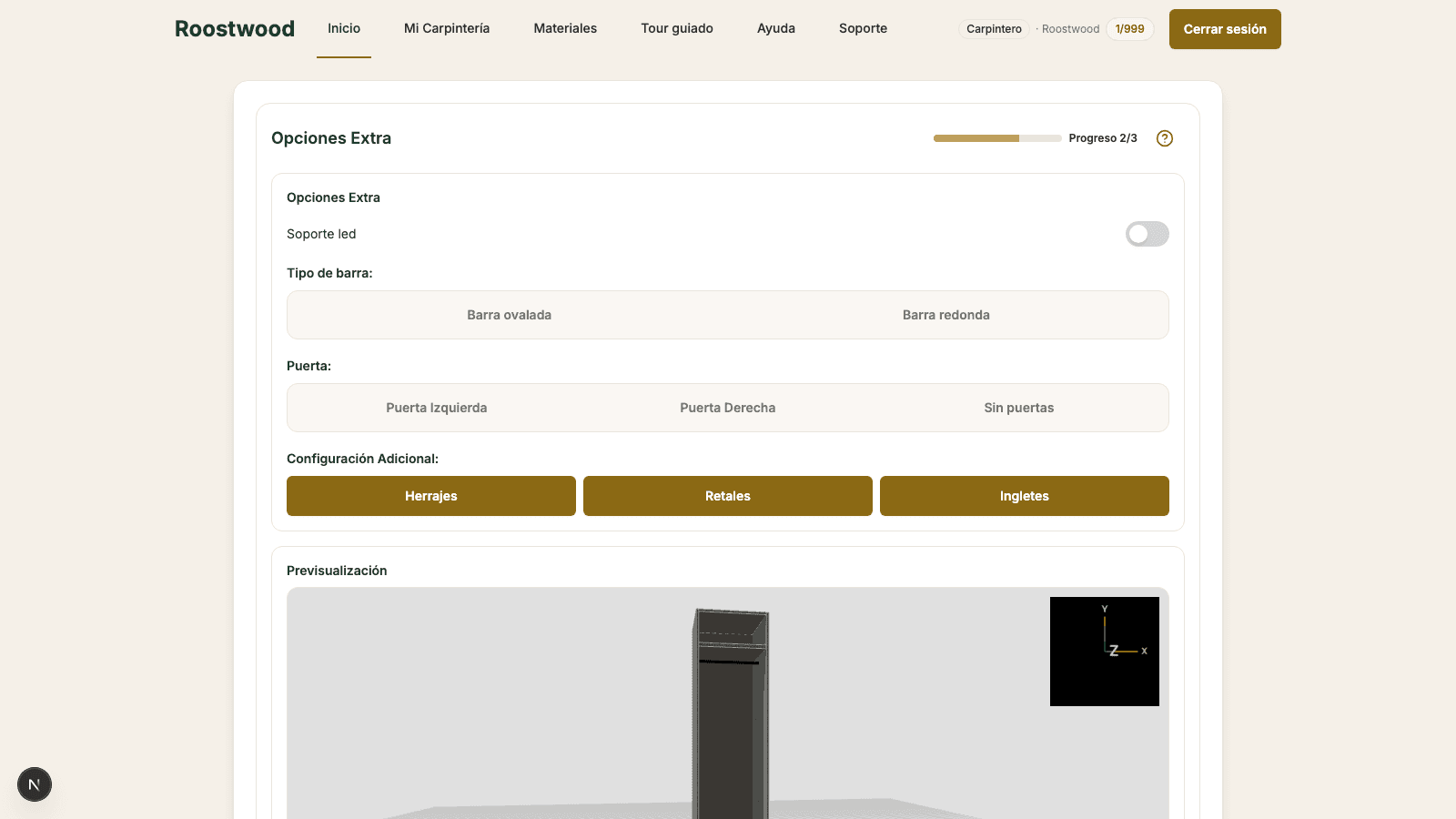
-
Select "No doors". The button highlights and a notice appears below: "The closet will be delivered open, without door panels. No handles or front panels are included in the cut list." The 3D preview updates instantly to show the open piece without fronts.
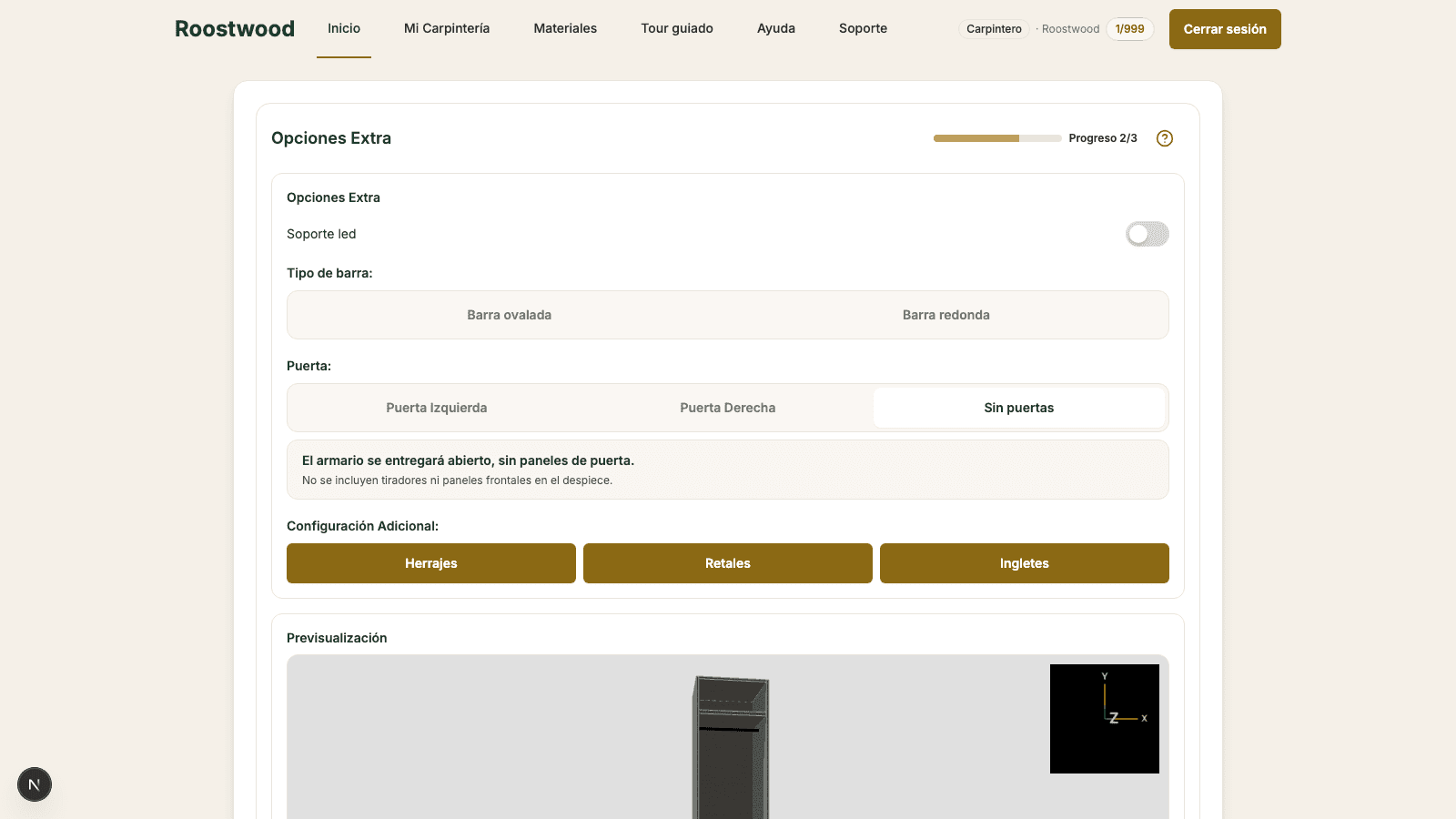
-
Press "Next". The section is saved with the no doors mark; the cut list omits the front panels and no handles appear in the list.
Tips
- If after selecting No doors you switch back to a door side, the doors reappear. The exception: if you closed the browser with no-doors active and come back later, the doors do not regenerate on their own — you have to go back to the layout selection step and pick one again.
- The quote goes down automatically: with the front panels gone, the board calculation reflects it too.
- In the cut list you will find no handles row and no door panels. If the client changes their mind, go back to the Extra Options step and re-enable the door.